
Moving a home office involves more than carrying a desk. Your work may depend on a computer, several displays, a printer, a router, and the small adapters that make everything connect. If you are requesting Phoenix movers for a household that includes a workspace, describe that equipment separately and plan the shutdown and restart before moving day.
This guide addresses the customer preparation that makes a home-office move easier to describe and coordinate. It does not assume that household moving service includes technical installation, data handling, or specialist equipment work. Start with our Phoenix movers page for local move planning, then use the steps below to prepare your workspace.
Identify what belongs to you and what belongs to your employer
Make a list of computers, displays, printers, docks, speakers, desk equipment, chairs, and storage furniture. Mark employer-owned items clearly in your private inventory. Ask your employer or equipment owner what relocation and handling rules apply before arranging transport. A household moving booking does not replace the owner’s approval or an organization’s equipment policy.
Separate ordinary household equipment from anything unusual. A small personal printer is different from a large business copier, and a single desk is different from a heavy connected workstation. Describe the actual piece, approximate dimensions, and any relevant handling restrictions. Ask whether the provider accepts it and whether specialist preparation or another service is required.
Create a second list of belongings you will carry yourself. That might include the laptop you need during the transition, essential chargers, access devices, and private documents. Tell the moving provider which items are excluded from its inventory. Keep them separated without leaving them in an active carrying path where someone might mistake them for the next load.
Choose your last working session and first realistic restart
Work backward from the first commitment that requires your normal setup. Decide when you can disconnect the office and what must be available before you can work again. Avoid promising a fully operational workspace immediately after the truck arrives. Furniture delivery, internet service, technical setup, and application access are different tasks with different dependencies.
If you need to work during the transition, make a modest temporary plan using equipment you already know how to use. Test that plan before dismantling the main setup. Confirm that it meets your employer’s requirements when work accounts or confidential material are involved. Do not rely on an unfamiliar device or a connection method that your organization has not approved.
Tell the moving provider about timing constraints that affect access or readiness. A meeting that keeps the customer unavailable during loading can also create a coordination problem. Arrange an authorized contact if needed. A work deadline does not establish an exact delivery guarantee, so ask what arrival and service arrangements can actually be confirmed in writing.
Back up information before disconnecting equipment
For personal equipment, use the backup method appropriate to your device and check that the backup completed. A backup is more useful when you know how you would recover an important file. Keep recovery information accessible through a secure method that does not depend solely on the computer being transported. Do not include account passwords or recovery codes in the moving inventory.
Apple’s current Mac backup guidance describes Time Machine as a way to back up and restore files. That is one device-specific example, not an instruction for every computer. Use the documentation for your own system. For employer-managed equipment, ask the authorized technical team how backups and shutdown should be handled.
Do not ask movers to access your accounts, verify private files, or take responsibility for deciding which records matter. Physical transport and data administration are different responsibilities. If you are unsure whether your backup works, resolve that with an appropriate technical adviser before the move. Labeling a carton as fragile does not protect against data loss or make a backup unnecessary.
Document connections without exposing secrets
Before unplugging anything, make a simple connection map. Identify which display connects to which dock, where the power supplies belong, and which adapters are needed. Use device labels that you can understand later, such as left monitor, desk dock, and printer power. Keep manufacturer labels and identifying numbers in your private records rather than on public moving notices.
Photographs can help show cable placement, but check what the image includes. Close private documents and avoid capturing passwords, account information, QR access credentials, or sensitive work on a screen. You need a picture of the connection arrangement, not a record of your digital workspace. Follow your employer’s rules before photographing managed equipment.
Store each equipment group’s cables and small adapters in a labeled container. Do not create one unmarked box of cords for the whole household. A missing power supply can delay a restart even when every large device arrives. Keep the essentials for your temporary workstation with you, and confirm that they are not accidentally packed with equipment going to storage.
Follow the actual manufacturer’s transport instructions
Look up the model-specific guidance for fragile or complicated equipment before deciding how to prepare it. A printer’s requirements can vary by design. For example, HP publishes transport guidance for particular Smart Tank printers. Use the instructions matching your model rather than applying a general printer checklist to every machine.
Ask who will supply suitable packaging and who will pack the equipment. Original packaging may be helpful when it is intact and appropriate, but do not assume that any old carton provides the required protection. Give the provider the equipment details and ask what preparation it accepts. If suitable packing is not available, resolve that before pickup instead of hoping a blanket will be enough.
Do not remove components, drain materials, or disable mechanisms based on guesses. Some preparation belongs to the owner, manufacturer, technical team, or specialist. Record the agreed responsibility next to the item. If a device has a known fault or damaged casing, disclose it during the service discussion so the preparation and condition record reflect the actual equipment.
Treat the desk as furniture with its own preparation needs
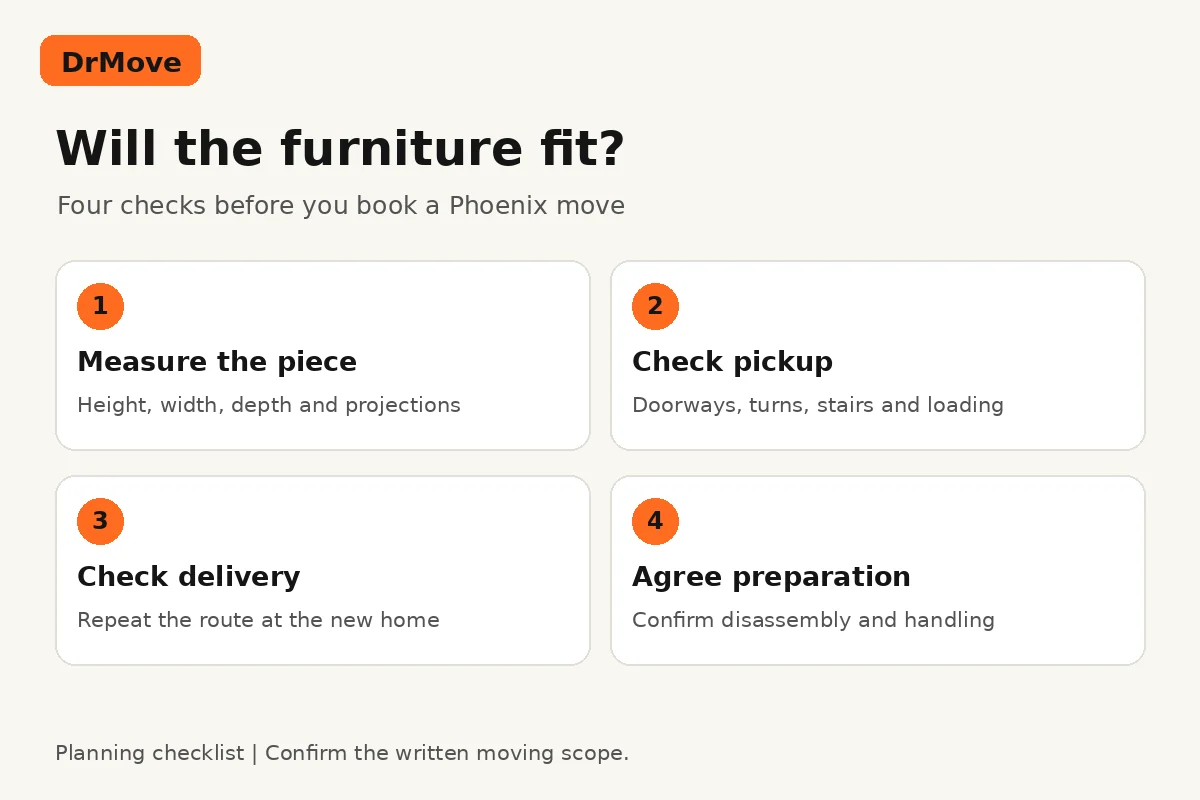
Measure the desk and its route, especially if it has a large top, heavy panels, built-in storage, or a powered adjustment mechanism. Record what can be removed according to its instructions. Do not assume the provider will disassemble and reassemble every component as part of the standard service. Ask which tasks are available and included in the written scope.
Identify monitor arms, under-desk trays, mounted power equipment, and attached accessories. Decide who will remove them and how small hardware will be kept with the correct piece. Keep instructions available. A desk may look empty after the computer is removed while still carrying brackets and cables that affect how it can be handled.
Check the destination route as well as the pickup route. A desk that fits the current room may not reach an upstairs office at the next home. Our Phoenix furniture route guide explains the dimensions and access details to collect. Leave handling decisions to the provider; do not attempt a trial lift or an improvised carry to test the fit.
Put equipment and packing work into the quote request
Add the home office to the complete household inventory instead of describing the move only by bedroom count. Include the number of desks, chairs, screens, computers, packed equipment boxes, and unusually heavy pieces. Distinguish owner-packed items from equipment for which you are requesting packing. Mention stairs, long carrying routes, and any destination room that needs further review.
Ask whether requested services include equipment packing, furniture assembly, or another specific task. Do not describe technical reconnection as ordinary unpacking. Internet activation, network configuration, wall mounting, and software setup require their own arrangements unless explicitly accepted. A provider’s willingness to transport a device is not a promise to install it or restore your working environment.
If more equipment appears after the quote discussion, send an update before moving day. The same applies if an item will now go to storage or another address. Use our moving inventory checklist to keep the office list connected to the rest of the home. The final written scope should describe one current version of the entire job.
Prepare the destination before reconnecting
Choose a destination room and keep its placement instructions clear. Decide where the desk and large storage furniture belong before boxes fill the available space. Identify outlets and any known room limitations, but leave electrical work to qualified professionals. Do not make the moving crew responsible for altering a building or determining whether a proposed electrical arrangement is suitable.
Confirm internet service arrangements directly with the relevant provider. Ask what equipment and appointments are required at the new address. Service that worked at the old home does not establish readiness at the new one. Keep your moving date and service activation plan aligned while recognizing that a moving appointment does not guarantee internet installation or technical availability.
Unpack methodically using your connection map and manufacturer guidance. Check the equipment’s condition and report any concern through the moving provider’s stated process. If a device appears damaged, do not keep testing it in ways that might worsen the problem. Obtain appropriate technical advice and preserve the relevant packaging and records while the issue is reviewed.
Build a restart checklist around actual work
Prioritize the equipment required for your next working session. Check power, display connections, input devices, approved connectivity, and access to the applications you need. Keep a list of missing adapters or unresolved setup issues. A screen turning on is one useful check, but it does not establish that the whole workspace is ready for a scheduled meeting or production task.
For employer-owned equipment, follow the organization’s restart and support process. Use the authorized help channel if access fails. Do not share credentials with movers or unapproved helpers to speed up the process. Keep office records, personal data, and technical administration under your control or the equipment owner’s approved arrangements throughout the move.
DrMove’s AI-powered online binding-quote approach covers the agreed inventory, services, and conditions without an in-home sales estimator. The current online form begins a request for review; it does not itself issue a binding price, reserve a truck, or authorize payment. Review the written quote and terms. Changed equipment, access, stops, or services may require an updated written quote before the work changes.
Preparing a Phoenix home-office move means giving each responsibility an owner: equipment approval, backup, packing, transport, furniture preparation, and technical restart. Share the moving details online, settle the requested services, and keep your work setup plan alongside the household plan. That makes the move easier to assess and gives you a more realistic path back to work.